
Connecting your laptop to the internet
Your laptop connects to the internet over Wi-Fi, an invisible signal that comes from your internet modem. Connecting takes about two minutes, and your laptop remembers the connection afterwards, so you only have to do this once.
First, find your Wi-Fi name and password
Look at your internet modem, the small box your internet company gave you. On the back or bottom there's usually a sticker showing the Wi-Fi network name (sometimes called SSID) and the Wi-Fi password (sometimes called WPA key, wireless key, or passphrase). Write both down before you start.
Connecting to your Wi-Fi, step by step
- 1
Find the internet icon near the clock
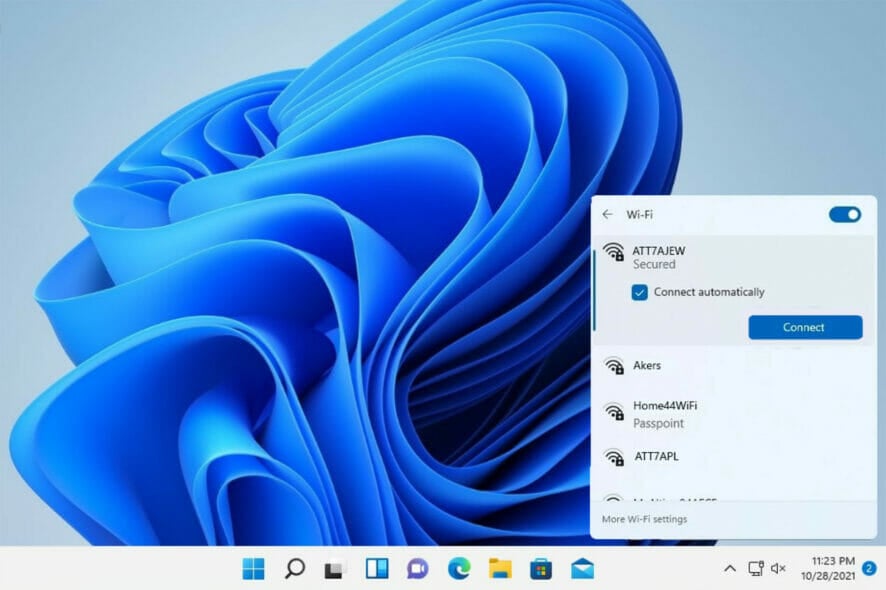
Look at the bottom right corner of your screen, next to the clock. That's where the internet icon lives: a small globe (often with a crossed-out circle) when you're not connected yet, or curved Wi-Fi bars once you are. Clicking in that corner is how you reach the Wi-Fi list shown below, where nearby networks appear. The next steps take you there.
- 2
Choose your network
You'll see a list of every Wi-Fi network nearby, including your neighbours'. Click the one that matches the network name on your modem sticker. Make sure the box marked Connect automatically is ticked, so your laptop reconnects by itself in future, then click Connect.
- 3
Type the password
Type the Wi-Fi password from your modem sticker, exactly as it's printed. Capital letters, small letters, and numbers all matter. Click the little eye symbol in the box to see what you're typing. When you're sure it's right, click Next.
- 4
Check it worked
After a few seconds it should say Connected, and the icon near the clock changes from a globe to curved Wi-Fi bars:

This icon means you're connected. You're online!
To make sure, open the Microsoft Edge browser from the bar at the bottom of the screen and visit any website, like abc.net.au.
No Wi-Fi at home? Use your phone
Most mobile phones can share their internet with your laptop. This is called a hotspot.
On an Android phone
- Open Settings, then look for Network & internet or Connections.
- Tap Hotspot & tethering (or Mobile Hotspot), then switch the hotspot on.
- The screen shows the hotspot's name and password. On your laptop, connect to it just like a normal Wi-Fi network, following the steps above.
On an iPhone
- Open Settings, then tap Personal Hotspot.
- Switch on Allow Others to Join. The password is shown on the same screen.
- On your laptop, the hotspot appears in the Wi-Fi list under your phone's name. Connect to it following the steps above.
A hotspot uses your phone's mobile data, so keep an eye on your data allowance, especially for big downloads like Windows updates.
Not connecting? Try these fixes
Work through them in order. Most connection problems are fixed by the first two.
Check aeroplane mode is off
Click the Wi-Fi or globe icon near the clock. If the button labelled 'Airplane mode' is lit up blue, click it once to turn it off, then try connecting again.
Restart your modem
Turn your internet modem off at the wall, wait 30 seconds, then turn it back on. Wait a few minutes for its lights to settle, then try connecting again. This fixes more problems than anything else.
Restart your laptop
Click the Start button (the Windows logo at the bottom of the screen), click the power icon, then Restart. When it comes back on, try connecting again.
Move closer to the modem
Wi-Fi gets weaker through walls and over distance. If the connection keeps dropping, try sitting in the same room as your modem and see if it improves.
Double-check the password
Wi-Fi passwords are fussy: capital letters, small letters, and numbers must all be typed exactly. It's easy to mix up a capital O and a zero, or a small l and a capital I. Type it slowly, and click the little eye symbol in the password box to see what you've typed.
Lost your Wi-Fi password?
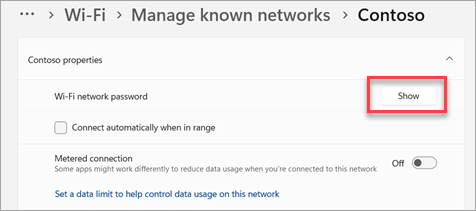
If it's not on your modem sticker, another Windows computer in your home that's already connected can show it to you. On that computer, open Settings, go to Network & internet, then Wi-Fi, then Manage known networks, click your network's name, and click the Show button next to "Wi-Fi network password".
Still can't get online?
Send us a message and we'll figure it out together. If you can, tell us what you see on the screen when it fails.
Ask for help